 COME
COMECOME APK Not Installed: Diagnose the Message
If a COME APK will not install, start with the exact Android message and the stage where it appears. A failed download, an installer rejection and a network problem after the app opens need different checks.
First, identify the stage
- Before a file is saved: inspect the browser’s download status and connection.
- When opening the file: check download completion and whether it is the expected APK.
- During installation: read the storage, compatibility, protection or conflict message.
- After the app opens: separate connection and sign-in problems from installation.
If the download is incomplete
Do not open a partial item or repeatedly launch the same failed download. Check your connection and available storage, then obtain a fresh copy from the expected source. Compare the offered details rather than selecting an unrelated mirror.
If Android reports insufficient storage
Check the device’s storage summary and make room using its normal storage tools. An installer needs working space beyond the compressed download size. Avoid removing app data that you cannot recover.
If the message mentions compatibility or parsing
Check that the file is an Android APK and that the transfer finished. Then compare your phone's Android version and device model with the current publisher requirements. If requirements are unclear, seek device-specific help rather than guessing a minimum version.
If an existing installation causes a conflict
Keep the installed app in place while you verify the release, source and identity of the offered update. A package or signing mismatch cannot be fixed by renaming the file. Preserve account access and use the product’s support route before considering a reinstall.
If protection blocks the file
Keep the protection active. Read the warning and use the device’s recommended review steps. Neither a familiar logo nor a successful download is a reason to dismiss a security message.
If the app opens but cannot connect
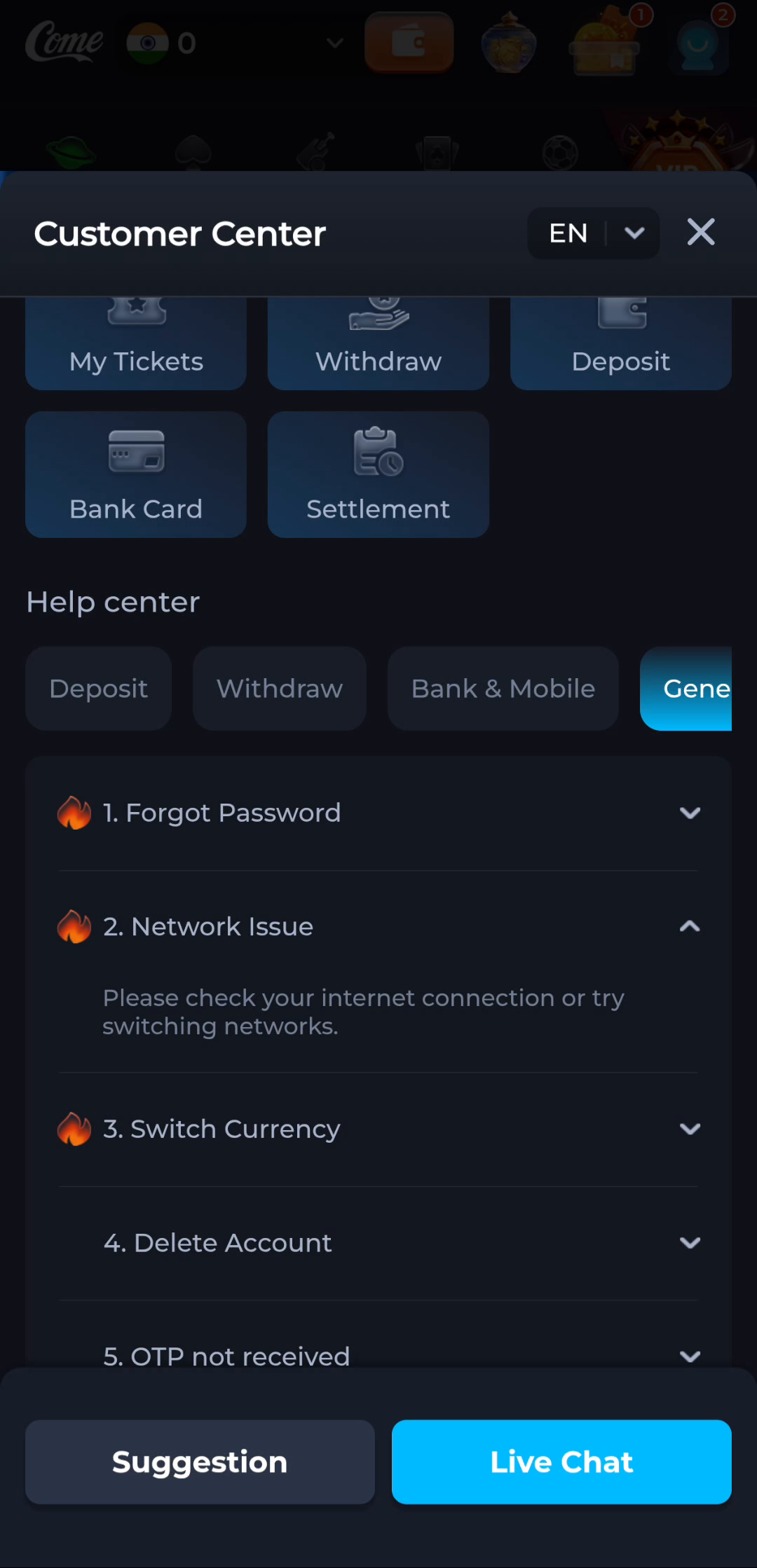
The Network Issue help screen suggests checking the connection or trying another trusted network. Use this for a connection problem after opening the product. It will not resolve every installation error, and it should not be used to bypass an access restriction.
Check whether other sites load, use a network you trust and record any product message. If the problem concerns sign-in, follow the account-help topic that matches it. Reinstalling repeatedly is unlikely to clarify either issue.
Keep a useful problem record
Record your Android version, the step that failed and the full message. If you share a screenshot with the product’s support service, remove private details and never include passwords or one-time codes.